 Document Password Recovery Master
 How to remove restrictions in PDF files, delete print permissions in PDF files, and remove editing permissions in PDF files.
Do you have an Adobe PDF file that you can open but cannot edit, print, or copy selected text to the clipboard? There is a simple solution: with just a few clicks, the file can be left unprotected.
The bad news: You will need software. Good news: We've created one for you.
The Adobe PDF format defines several protection methods. You can protect the PDF file from being opened (so you only need a password to open and view the file), or you can open the file without a password, but with certain restrictions, such as disabling editing, printing, or copying content to the clipboard.
For basic information on PDF protection, please refer to How to Password Protect PDF Files and Choosing Secure PDF Methods; Restrictions can be specified in the full version of Acrobat (Standard or Professional, not the free Reader); Alternatively, you can protect PDF files online.
Let's start with unprotected files. In Adobe Reader, the "Print" button is usually disabled (grayed out), or you can select Test, but there is no "Copy" option in the pop-up menu. If you open a similar file in Adobe Acrobat and try to edit it, you will see the following notification:
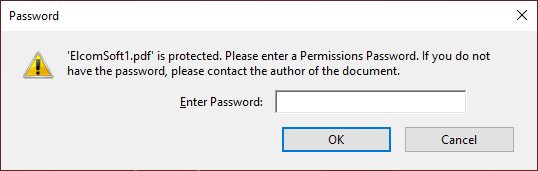
If you click "Cancel", another error will appear:
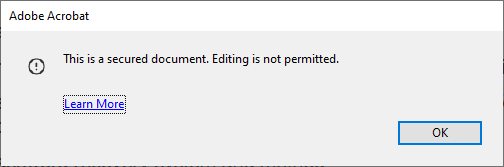
If the password-protected PDF file cannot be opened, you will be prompted to enter a password after trying to open the file:
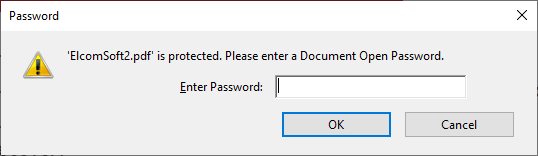
However, even with this password, certain restrictions (editing, copying, or printing) may still apply; It doesn't matter if you know the open (encrypted) password.
The solution is simple.
1. Log in to our official website Document Password Recovery Master: www.mima8.cn
2. Click Upload File, select PDF File 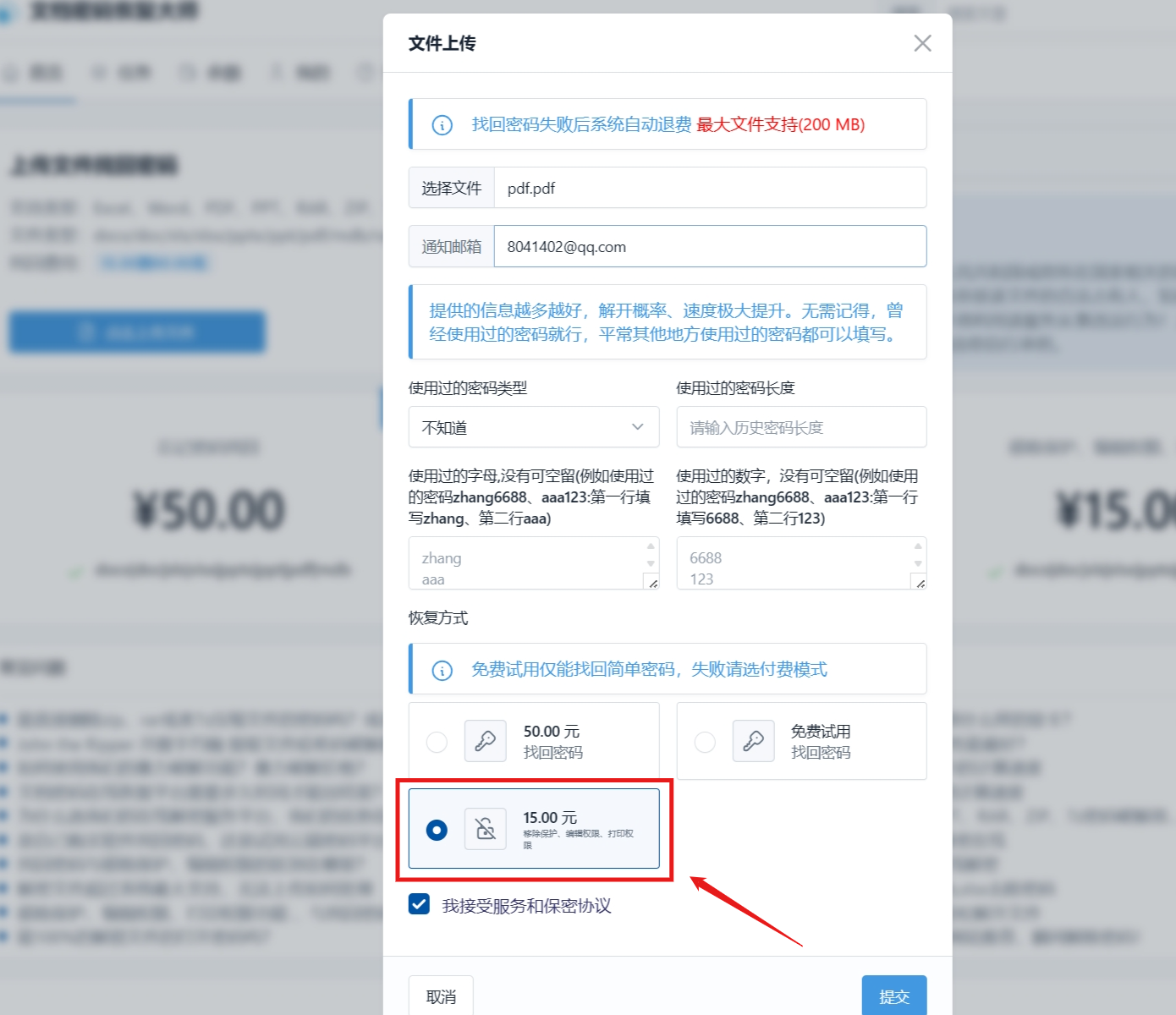
If you know the password, everything is as simple as above; Enter the password, then press Decrypt Now to unprotect the file.
What if the open password (also known as the file encryption password) is unknown? This depends on the choice of PDF version and security options; Password length and complexity. Different PDF versions use different encryption algorithms and encryption key lengths ranging from 40 bits to 256 bits. In some cases, the "open" password can be removed almost immediately (using our patented Thunder Tables). ® technology), and strong passwords in the latest version of Adobe Acrobat cannot be recovered within a reasonable time. Press "Start Recovery" and try a brute-force, dictionary, or keystroke search attack, but that's another matter.