 Password Recovery
 How to unlock the password when Excel forgets it? Xls password cracking, xlsx password removal

Excel is frequently used in our daily work or study. We send Excel spreadsheets to others over the internet, but sometimes, for company data security or to protect privacy, and to prevent others from arbitrarily modifying or copying data, the usual method is to add a password to the Excel spreadsheet. Over time, I sometimes forget my password. How can I solve this? Let's see how to solve it.
Yesterday I suddenly received a request for help from a friend. I don't know where he got the Excel file from. When he tried to copy the data inside, when he clicked to edit a sheet in Excel, he received a message: The cell or chart you are trying to change is located in a protected worksheet. To make changes, unprotect the worksheet, and you may need to enter a password. As shown in the image below:

Protected prompt
Oh wow! It's an encrypted sheet. I want to use the data in this sheet, but I can't copy it. It can also be done by hand. However, there is a lot of data in the sheet. Typing it entirely by hand would be a bit troublesome. It would be so much better if this protection could be removed and copied directly.
Kai Ge hadn't really studied Excel before, which protects sheets. This just piqued Kai Ge's curiosity. Let's figure out how to handle this.
After a period of online searching, Kai Ge actually found the solution. Try it decisively:
1. Rename the Excel file and change the file extension
Rename the Excel file with the forgotten password (this is to prevent the original file from being overwritten after later operations). After renaming, change the file extension of the new Excel file from the original xlsx to RAR. As shown in the image below:

Modify the file extension
2. Open the RAR file and find the corresponding sheet file
Double-click the newly renamed RAR compressed file to find and open the xl folder:
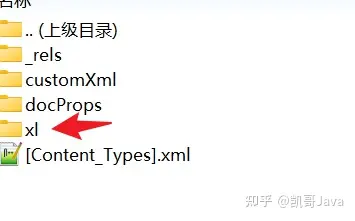
Find the xl folder
After opening the xl directory, you will find that there are still many files and folders inside. We just need to open the worksheets folder. As shown in the image below:
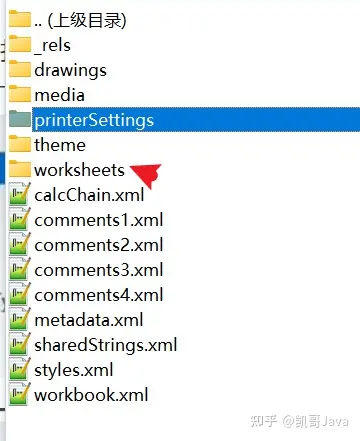
Find worksheets.
The worksheets folder contains our sheet page data. After opening it, you can see that multiple sheets in the Excel file exist in xml format. As shown in the image below:
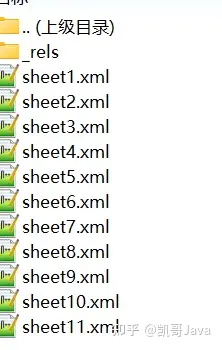
Find the sheet you need to modify
3. Delete the encrypted information
Find the sheet you need to open. For example, Kai Ge wants to open the fourth sheet page here. So that means opening the sheet4.xml file. You can open it directly using Notepad. You can also open it in any other text editor you like.
Kai Ge, open this using his favorite editor and search for the keyword Protection. Once you find it, delete it. Note that <sheetProtection /> requires a closing symbol. After deleting the relevant text, press Ctrl+S to save.

Modify xlsx
4. Re-modify the suffix without xlsx
After saving, close the document. Change the RAR suffix of the compressed file to xlsx. Then open the Excel file. Just find the sheet page that needs to be copied.